Overtime management for teams
Track overtime from logged to paid.
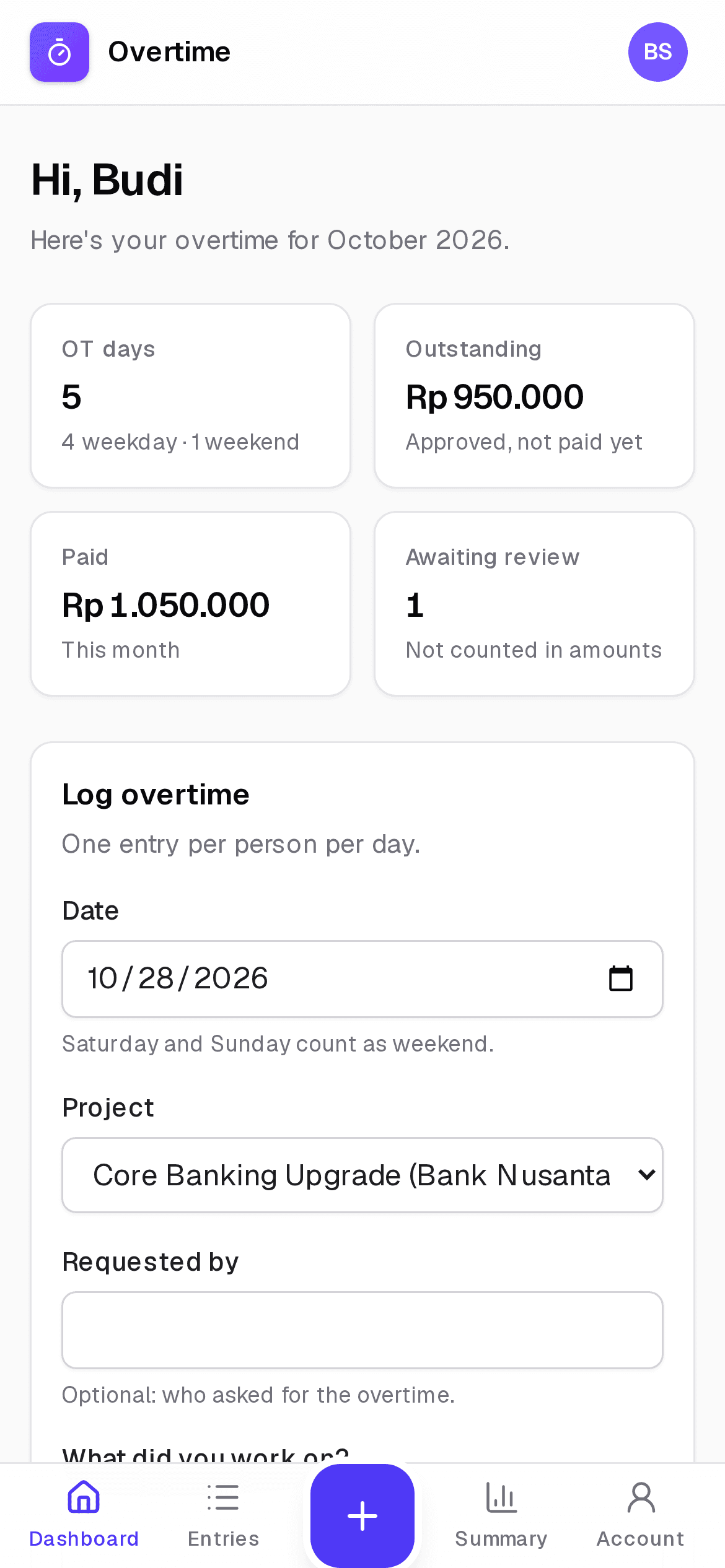
Overtime Tracker gives your team one place to log overtime days, approve them in batches and follow every payout, so nobody has to chase spreadsheets or chat threads again.
- Works on any phone
- Nothing to install
- Amounts in Rupiah
How it works
One clear workflow, from logged to paid
Every overtime day moves through the same four steps, so everyone knows where their money is.
- 01
Log the day
Team members log each overtime day with the project and what they worked on.
Submitted - 02
Lead approves
The lead approves or rejects in batches. The pay rate is locked in at approval.
Approved - 03
Claim it
Approved days are grouped into one expense claim, with its reference number.
In-progress expense - 04
Mark it paid
Record the payment date and transfer reference. Everyone sees it's done.
Paid
For team members
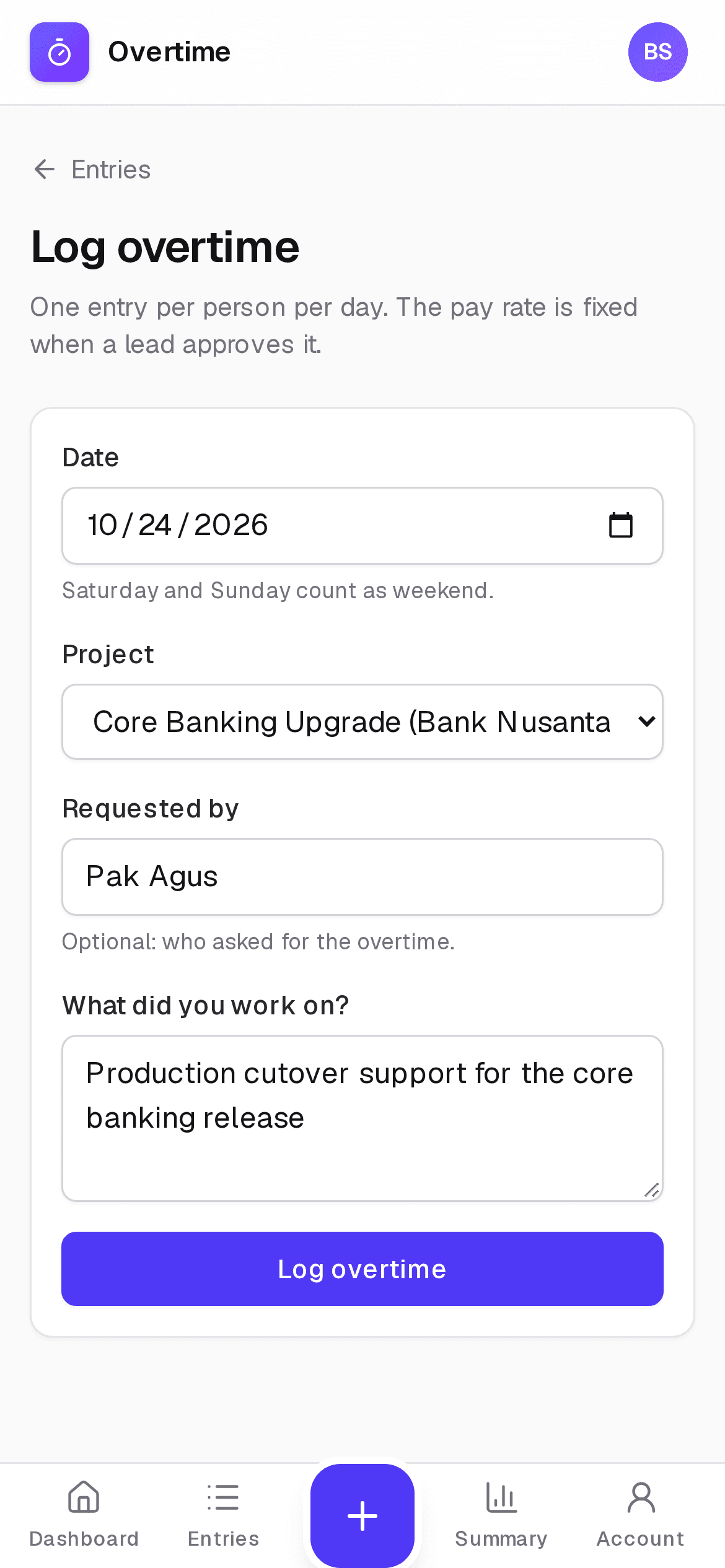
Log overtime in seconds
- Pick the date. Weekday or weekend is worked out for you.
- Your usual project is already selected.
- Fix mistakes yourself until a lead reviews the entry.
- See what you're owed and what's been paid, every month.
For team leads
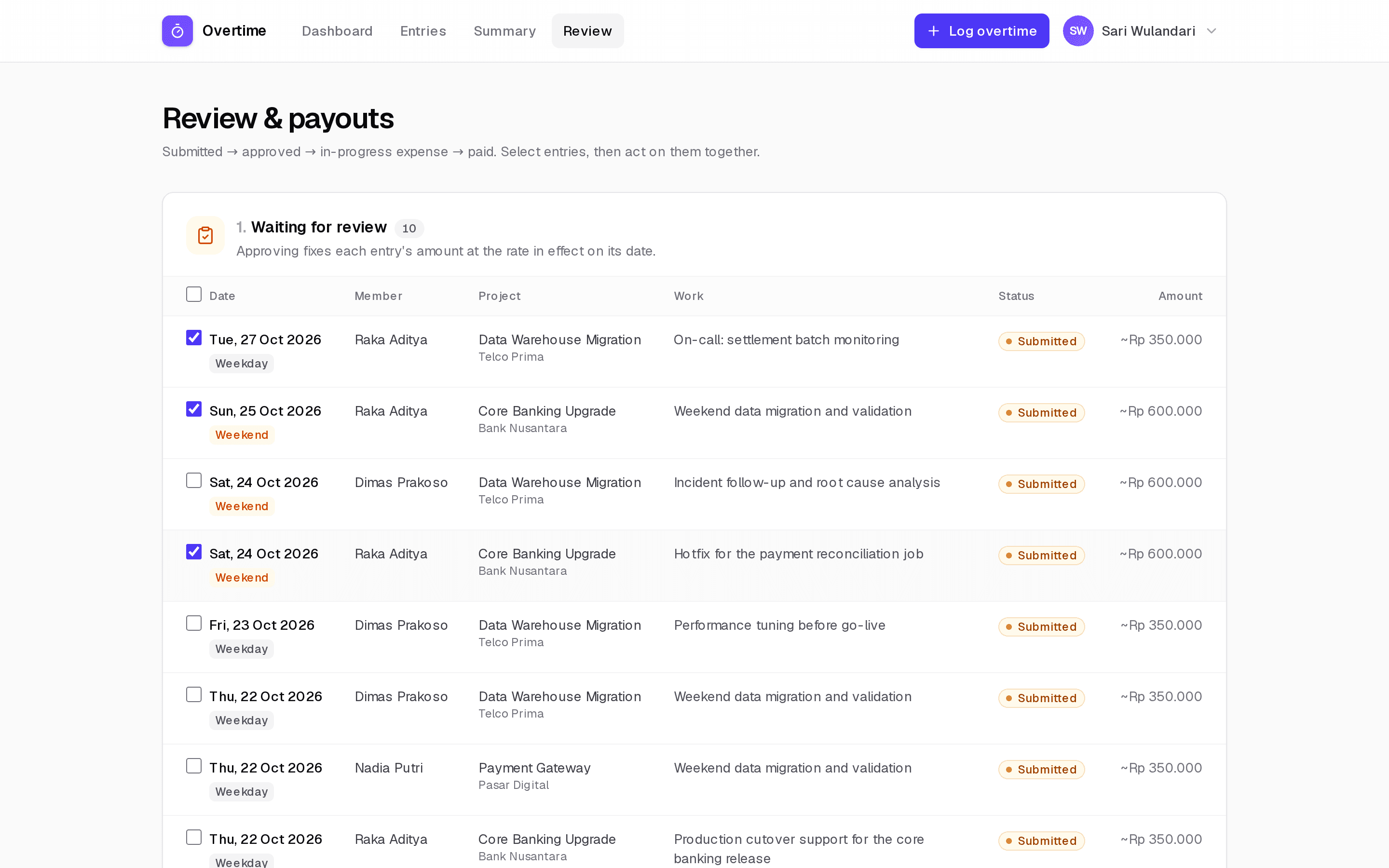
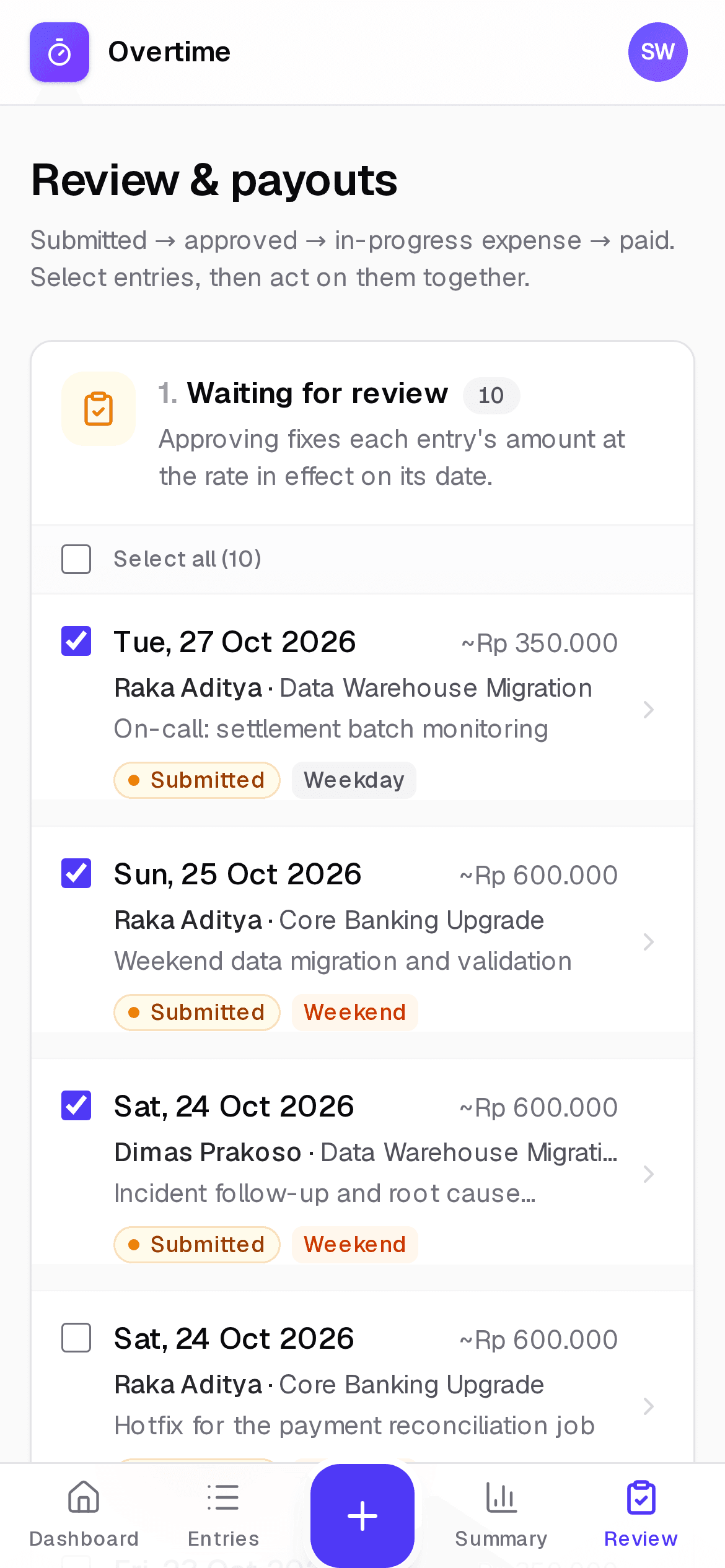
Approve and pay out in batches
- Select many entries and approve or reject them at once, with a note.
- Group approved days into one expense claim with its reference.
- Mark them paid with the payment date and transfer reference.
- Log overtime on someone's behalf when you need to.
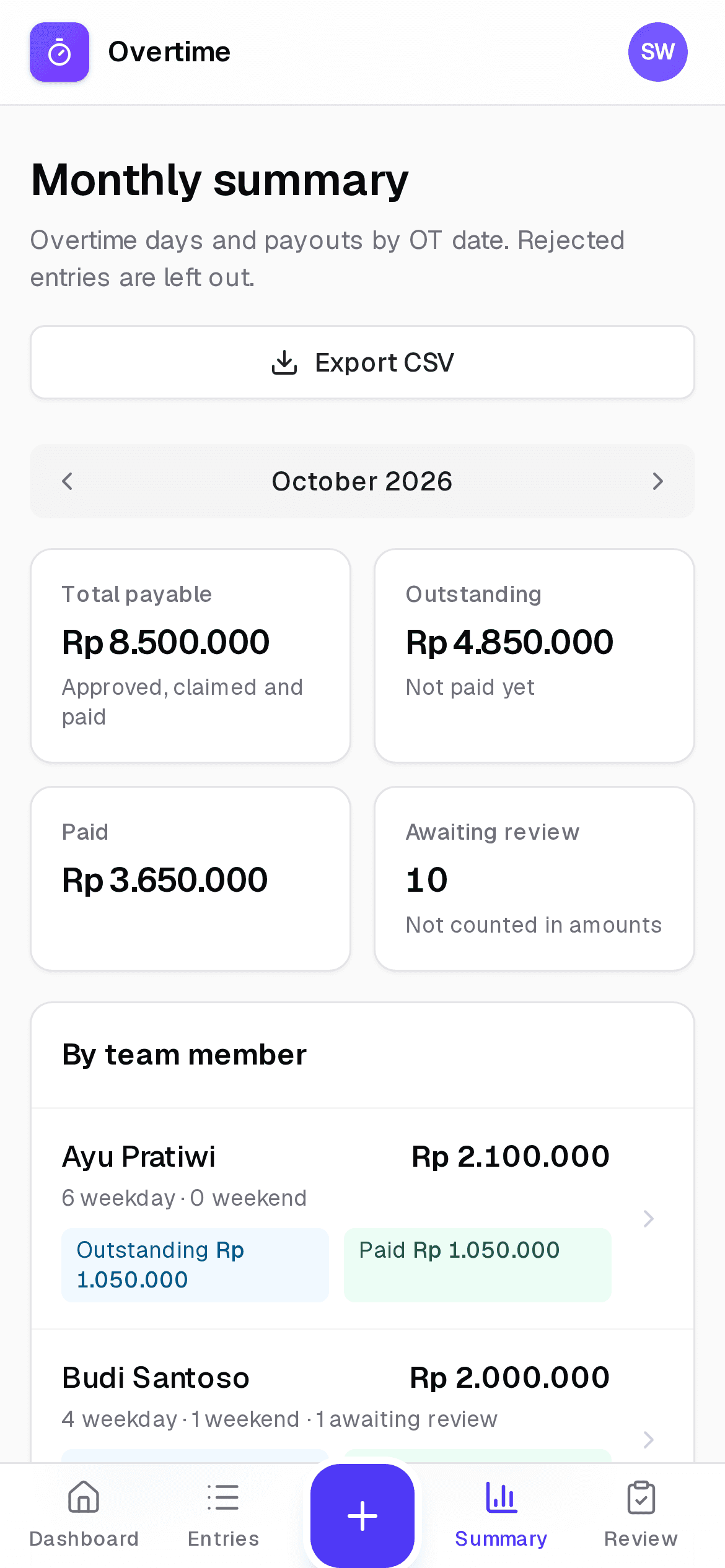
Monthly summary
Know what's owed, and what's paid
- Weekday and weekend days per person, for any month.
- Outstanding and paid totals, side by side.
- Export to CSV for finance or payroll in one tap.
History
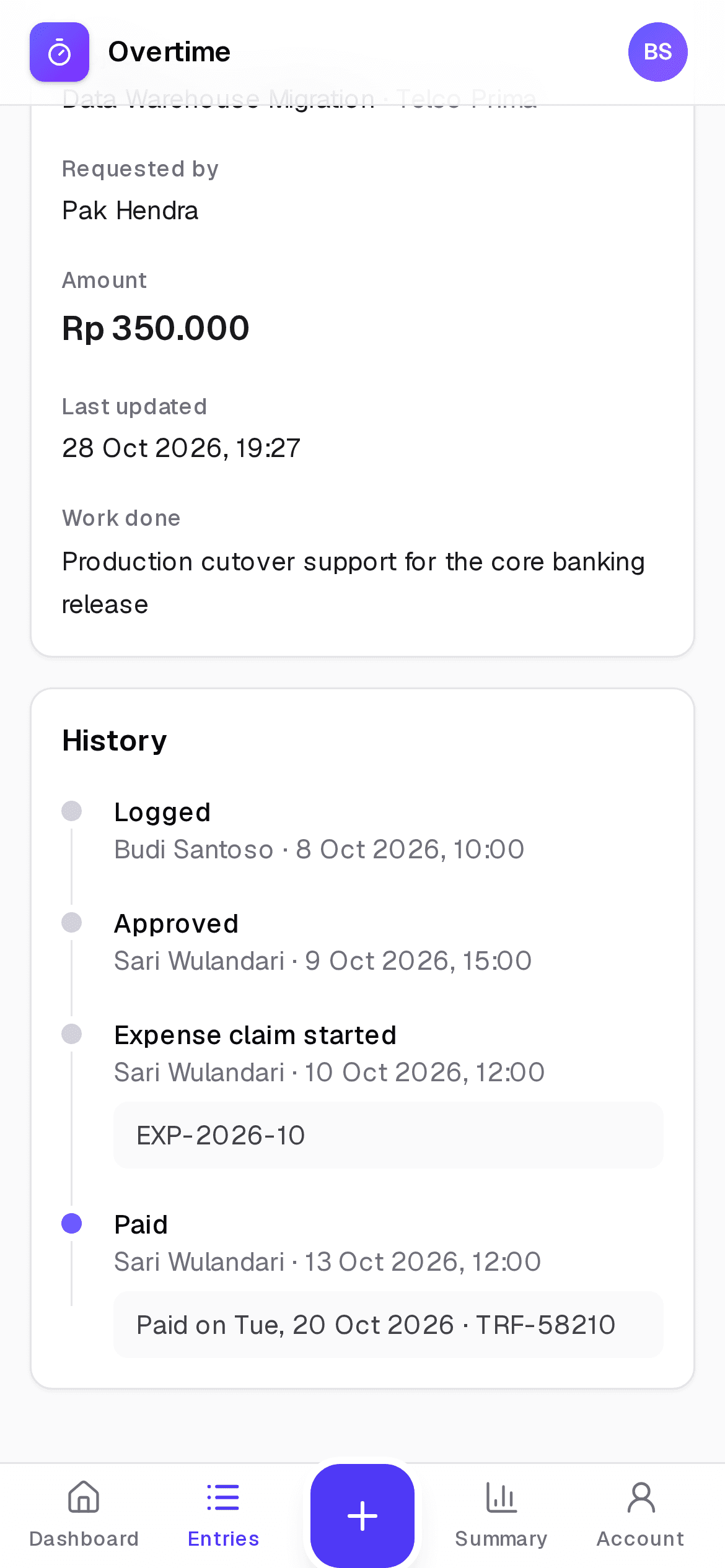
A clear trail for every day
- See who logged, approved, claimed and paid each entry, and when.
- Rejections come with the lead's reason.
- Claim and payment references stay with the entry.
Features
The details that make it work
Mobile-first
A bottom tab bar and a one-tap Log button. Works in any modern browser, no install.
Weekday & weekend rates
Saturdays and Sundays are detected automatically and paid at the weekend rate.
Locked-in amounts
Rates have start dates, and approved amounts never change when rates do.
Batch actions
Approve, claim or mark paid many entries at once, with a note or reference.
CSV export
Export any month, filtered by person, project or status, for finance or payroll.
Roles & privacy
Members only see their own overtime. Leads review, pay out and manage the team.
FAQ
Frequently asked questions
Who is Overtime Tracker for?
Teams that pay a daily amount for overtime days. Team members log the days they worked overtime, and team leads approve them, group them into expense claims and record the payouts.
How are overtime amounts calculated?
Each overtime day is either a weekday or a weekend day (Saturday or Sunday), and each has its own daily rate. Leads set rates with an effective date. When an entry is approved, it gets the rate in effect on that overtime date, and that amount is saved, so later rate changes never alter past pay.
Can I use it on my phone?
Yes. The app is designed for phones first, with a bottom navigation bar and a large Log button, and it also works on tablets and desktops. It runs in the browser, so there is nothing to install, and you can add it to your home screen.
What does “in-progress expense” mean?
It means approved overtime has been put into an expense claim that is waiting to be paid. Leads can record the claim reference, then mark the entries paid with the payment date and transfer reference.
Can I export overtime data to Excel?
Yes. Any month can be exported as a CSV file that opens in Excel or Google Sheets, filtered by team member, project or status.
How do I get an account?
Accounts are created by your team lead, who shares a temporary password with you. You can change it under Account after your first sign-in.
Stop chasing overtime in spreadsheets
Sign in to log your overtime or review your team's. New here? Ask your team lead for an account.
Sign in to Overtime Tracker